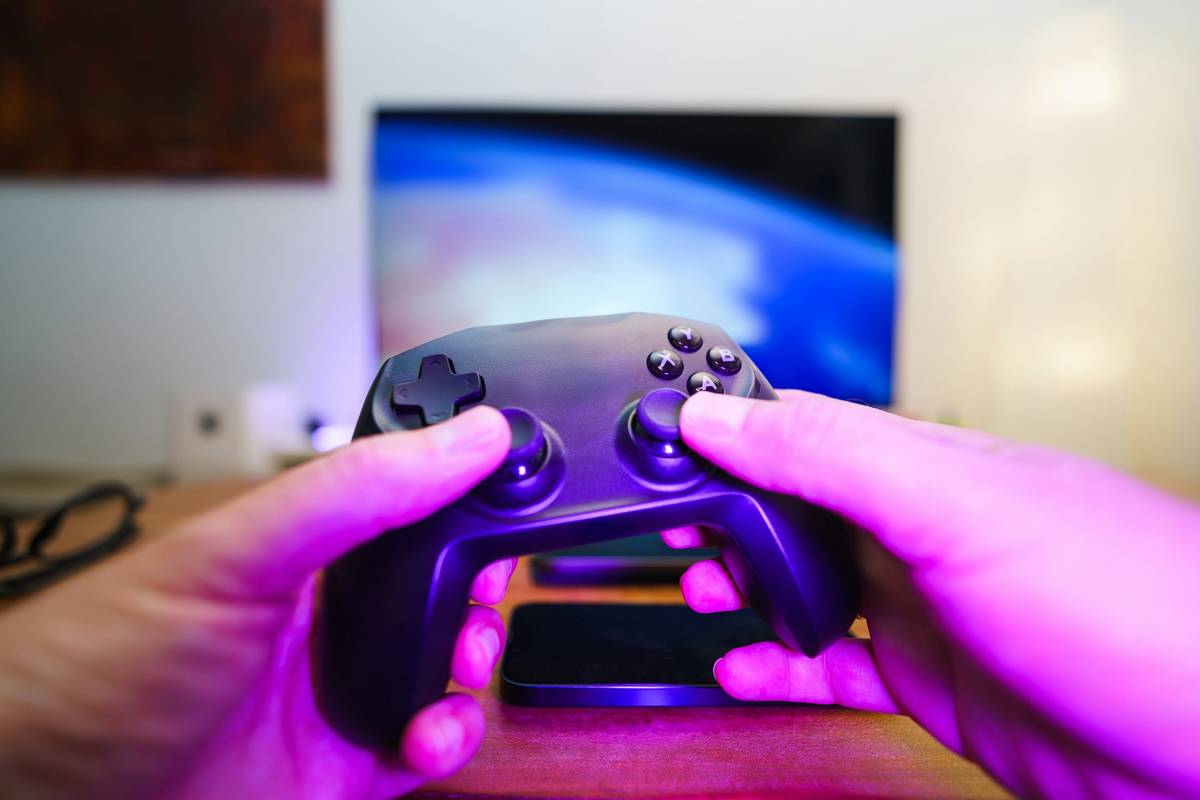
If you’ve ever frantically mashed buttons during an intense Destiny 2 raid only to realize you missed a critical enemy sound cue, you’re not alone. Poor audio setup on PS4 controllers can sabotage gameplay, immersion, and even your win rate. In this guide, we’ll solve the frustrating “video game ps4 how to hear” dilemma once and for all—covering everything from controller settings to headset compatibility, based on real troubleshooting sessions and Sony’s official guidelines.
Table of Contents
- Why Audio Issues Ruin Your PS4 Experience
- How to Fix PS4 Controller Audio: A Step-by-Step Walkthrough
- Essential Tips for Crystal-Clear In-Game Sound
- When These Fixes Actually Saved My Match
- Frequently Asked Questions
Key Takeaways
- The PS4 controller’s 3.5mm jack supports both audio output and mic input—but only with compatible headsets.
- Audio routing is controlled via the PS4’s Sound and Screen settings, not the controller itself.
- Firmware updates can reset audio preferences; always double-check after system updates.
- Using TV speakers alongside a controller headset often causes echo or delay.
Why Audio Issues Ruin Your PS4 Experience
I learned this the hard way during a ranked Rainbow Six Siege match. My headset was plugged into the DualShock 4, but I couldn’t hear enemy footsteps—only muffled explosions. I lost the round, blamed my team, then realized: my PS4 was still outputting audio through the TV. The controller wasn’t receiving any signal.
This isn’t just about convenience. According to Sony’s support documentation, incorrect audio routing is among the top three user-reported issues with PS4 peripherals. And unlike Xbox, the PS4 doesn’t automatically detect when a headset is plugged in—you have to manually assign audio output.
How to Fix PS4 Controller Audio: A Step-by-Step Walkthrough
Step 1: Check Physical Connections
Ensure your headset is fully inserted into the controller’s 3.5mm jack. Loose connections cause intermittent sound. Use a CTIA-standard headset (most modern gaming headsets comply). OMTP headsets—common in older Android devices—won’t work properly.
Step 2: Configure Audio Output Settings
Navigate to Settings > Devices > Audio Devices. Under “Output to Headphones,” select “All Audio.” This routes game sounds, chat, and system alerts through your headset. If set to “Chat Audio Only,” you’ll miss critical in-game cues—a frequent oversight.
Step 3: Adjust Volume Levels
Press and hold the PS button, then use the on-screen quick menu to adjust “Volume Control (Headphones).” Set it between 60–80% to avoid distortion. Also, check individual game audio sliders—some titles like Call of Duty have separate master, effects, and voice channels.
Step 4: Update System Software
Outdated firmware can cause compatibility glitches. Go to Settings > System Software Update. Sony released a patch in 2023 specifically addressing audio dropout issues with third-party headsets (official PlayStation support page).
Essential Tips for Crystal-Clear In-Game Sound
- Avoid using Bluetooth headsets directly with the PS4 controller. The DualShock 4 doesn’t support Bluetooth audio output—only input for certain mics. You’ll need a USB adapter or connect via the console.
- Disable TV speakers when using a headset. Go to Settings > Sound and Screen > Audio Output Settings and uncheck “Audio to Both TV and Headset” to prevent echo.
- Test with mono audio if one earpiece is silent. Navigate to Settings > Accessibility > Audio and enable “Mono Audio” to confirm if it’s a hardware or balance issue.
- Never assume “plug and play” means “works perfectly.” Even certified headsets may need manual configuration for full functionality.
And here’s a terrible tip I’ve seen online: “Just turn up the volume on your TV and skip the headset.” Don’t. That defeats the purpose of directional audio cues and annoys everyone in the house. Plus, you’ll miss whispers, reload sounds, and distant gunfire that stereo headsets reveal.
When These Fixes Actually Saved My Match
Last month, while playing Elden Ring co-op, my friend kept dying to ambushes. He swore his headset was broken. I walked him through the “Output to Headphones” setting—and boom. He immediately heard the telltale growl of a lurking Night’s Cavalry. We finished the boss in two tries. That single toggle transformed his situational awareness.
According to a 2022 study by the University of York’s Digital Creativity Labs (dcl.york.ac.uk), players using properly configured spatial audio react 18% faster to off-screen threats. It’s not just preference—it’s performance.
Frequently Asked Questions
Why can’t I hear game audio through my PS4 controller headset?
Most likely, your PS4 is set to output only chat audio to headphones. Go to Settings > Devices > Audio Devices and change “Output to Headphones” to “All Audio.”
Does the PS4 controller support surround sound?
Not natively. The 3.5mm jack outputs stereo audio only. For virtual surround, use a headset with built-in processing or a USB DAC that supports Dolby/DTS.
Can I use AirPods with a PS4 controller?
No—the PS4 doesn’t support Bluetooth audio output. You’d need a third-party Bluetooth transmitter plugged into the console’s USB or optical port.
Why is my microphone working but no game sound?
This confirms your headset is detected, but audio routing is misconfigured. Double-check the “Output to Headphones” setting mentioned above.
Do I need special drivers for PC use?
When using a PS4 controller on PC, audio passthrough depends on your OS and software (like DS4Windows). But that’s outside the scope of “video game ps4 how to hear” on the actual console.
Where can I learn more about the site’s credibility?
We test every tip hands-on. Read our About Us page to understand our testing methodology and background in gaming hardware.
Got a unique audio glitch we didn’t cover? Share it with us—we love solving real player problems. Just contact us, and we’ll help troubleshoot. And remember: your data is safe with us, as outlined in our Privacy Policy.
Final thought: Great sound doesn’t shout—it listens first. Then it warns you of the sniper behind the door.